Sales

Usage Guide

Using Sales Web Part

The Sales web part provides several functionalities:
1) Access & Navigation

Open the SharePoint site and go to the Sales page.

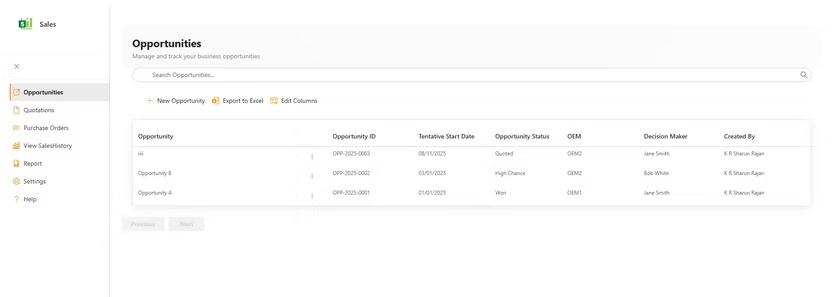
Use the left/top app menu to switch between:

  • Opportunities

  • Quotations

  • Purchase Orders

  • Sales Dashboard

  • Report

  • Settings

  • Help

Tips:  Use Search in each module to quickly find records. Export to Excel and Edit Columns are available on list views.​

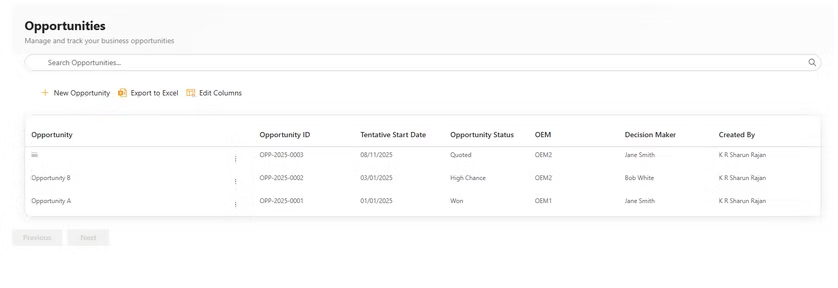
2) Opportunities
  • Purpose: Manage and track sales opportunities.
    Common actions:

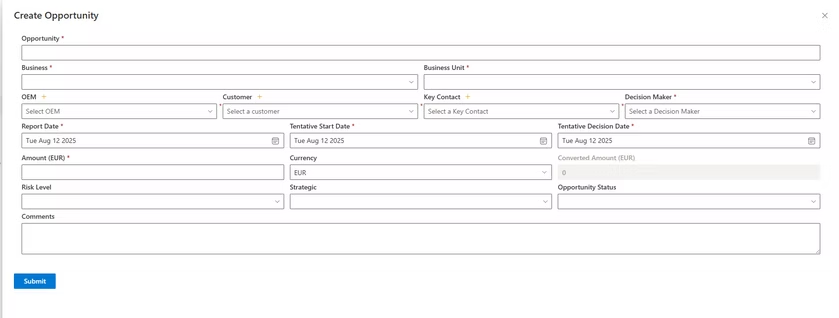
  • New Opportunity: Click “+ New Opportunity,” enter required fields (Business, Unit, Customer, OEM, Tentative Start Date, Status, Owner).

  • Edit/Delete: Use the row’s three-dots menu (…) to update or remove.

  • Search/Filter: Use the search bar and list filters to narrow results.

  • Export/Columns: Use “Export to Excel” and “Edit Columns.”

Key fields:

•Opportunity ID (auto-numbered by prefix rules)

•Business, Business Unit

•Customer, OEM

•Tentative Start Date

•Opportunity Status (e.g., Won, High Chance)

•Owner/Decision Maker

3) Quotations

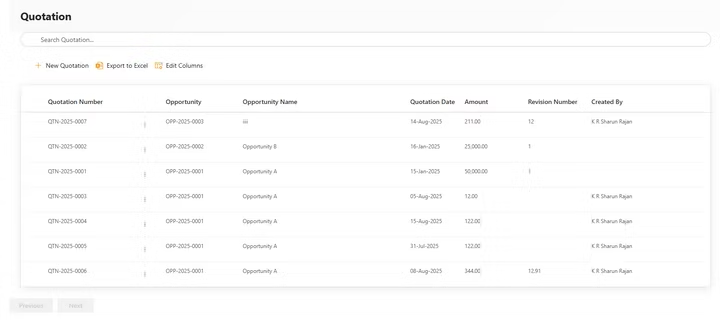
Purpose: Track quotations linked to opportunities.

Common actions:

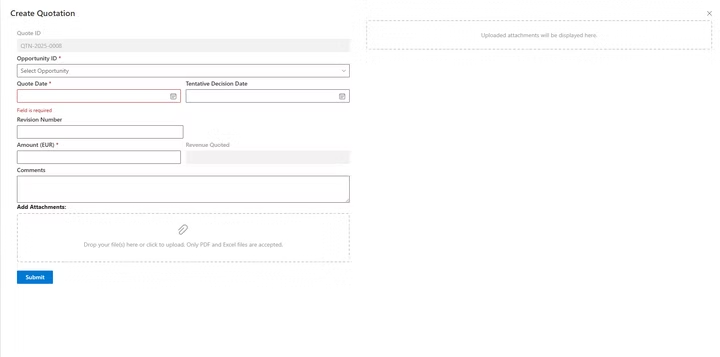
  • New Quotation: Click “+ New Quotation,” select the related Opportunity.

  • Edit/Delete: Use (…) menu for changes.

  • Search/Filter: Find by quotation number, opportunity, date, creator.

  • Export/Columns: “Export to Excel” and “Edit Columns.”

Key fields:

  • Quotation Number (auto-numbered by prefix)

  • Opportunity (lookup), Opportunity Name

  • Quotation Date

  • Amount

  • Revision Number

  • Created By

Tips:

  • Maintain revision numbers for quote history.

  • Ensure the Opportunity link is correct; it powers PO and dashboard roll-ups.

4) Purchase Orders

Purpose: Record and track POs and their linkage to quotations/opportunities.

Common actions:

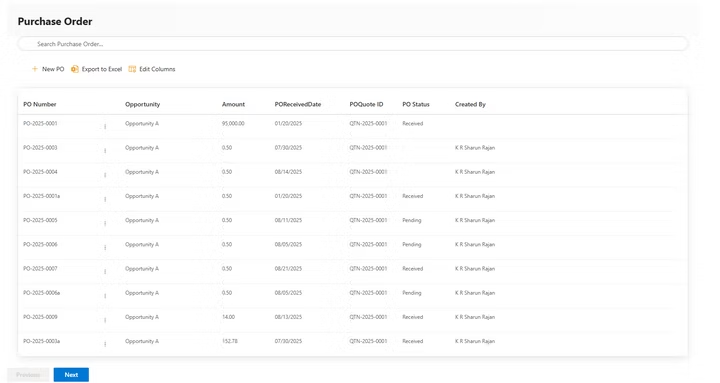
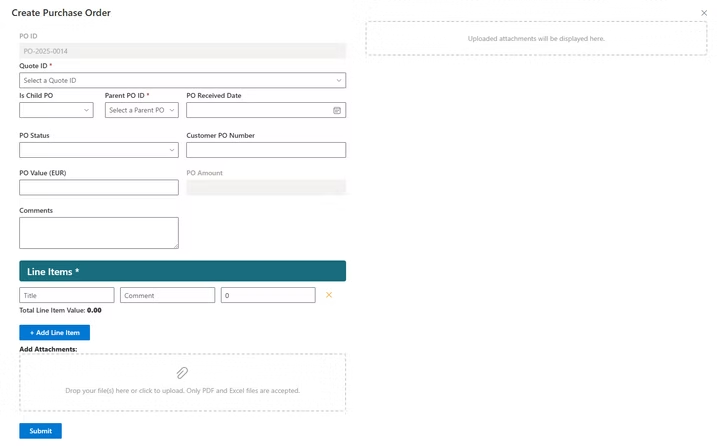
  • New PO: Click “+ New PO,” enter core details.

  • Edit/Delete: Use (…) menu.

  • Search/Filter: Find by PO number, status, date.

  • Export/Columns: “Export to Excel” and “Edit Columns.”

Key fields:

  • PO Number (auto-numbered by prefix)

  • Opportunity (lookup)

  • Amount

  • POReceivedDate

  • POQuote ID (quotation reference)

  • PO Status (Received, Pending)

  • Created By

Tips:

  • Update PO Status promptly to reflect revenue recognition and pipeline accuracy.

  • Keep POQuote ID consistent with quotation records.

5) Reports

Purpose: Filtered, exportable lists for analysis.

Actions:

  • Navigate to Report from the main menu.

  • Apply filters (status, customer, date).

  • Export filtered results to Excel for further analysis.

Tips:

  • Save commonly used filter combinations (if site allows views).

  • Use Reports for monthly/quarterly reviews and handoffs.

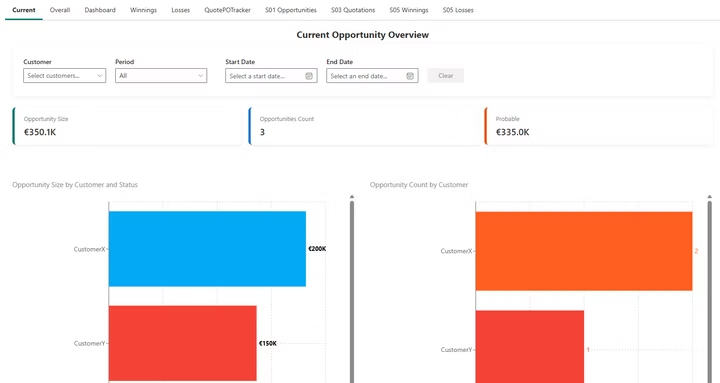
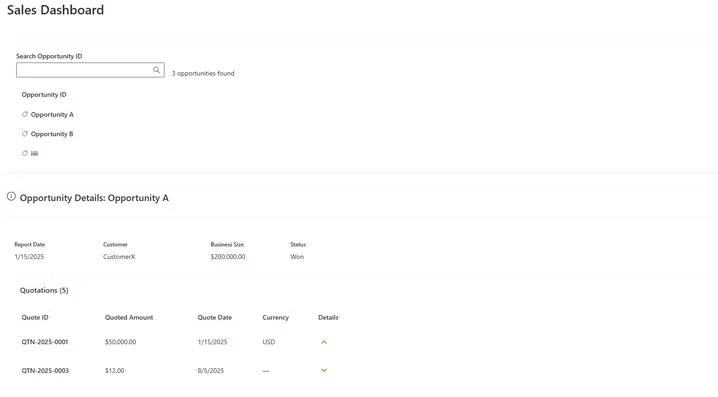
5) Sales Dashboard

Purpose: Visual insights and drill-downs.

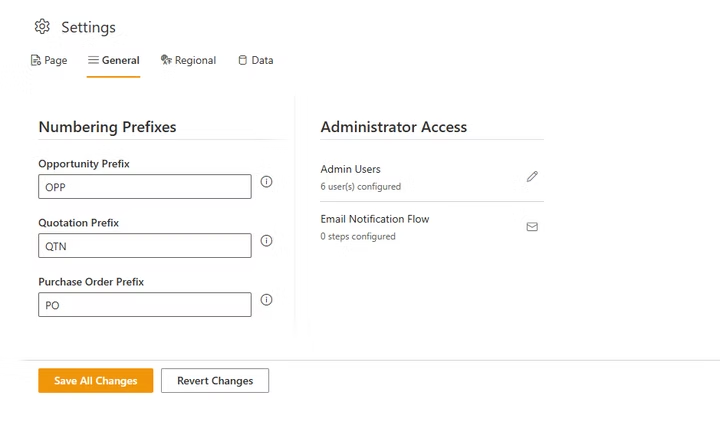
6. Settings
  • Purpose: Configure numbering, master data, admin access, and notifications.

       Sections:

  • Numbering Prefixes:

  • Opportunity Prefix

  • Quotation Prefix (e.g., QTN)

  • Purchase Order Prefix

  • Save All Changes or Revert Changes

       Administrator Access:

  • Admin Users: add/remove (email/login); shows total admins configured

       Master Data Management:

  • Business, Business Units, Opportunity Status

       Bulk Import:

          Import Opportunities/Quotations/POs from Excel

  • Real-time progress feedback during import

  • Attachment handling: place files in /Shared Documents/CommonAttachments and reference by filename

       Guidelines:

  • After changing prefixes, new records use the new format (e.g., OPP-2025-0001, QTN-2025-0001, PO-2025-0001).

  • Keep master data tidy to ensure consistent reporting.

  • Use Revert Changes if a configuration update needs rollback.

Ready to Transform Your Business? Take the First Step Today!

Totam rem aperiam, eaque ipsa quae ab illo inventore veritatis et quasi architecto beatae vitae dicta sunt.

Call Us

+62 (385) 5025004

Email Us

contact@domain.com

Quick Link

Services

Resource

Social

Legal

Copyright © 2025 Chandra. All rights reserved.
wpChatIcon
wpChatIcon
Feedback form
Name