Projects
Usage Guide
Using Project Works Web Part
The Projects works web part can be used in two ways: Projects Assignment ( Manage All Projects )
1. Self
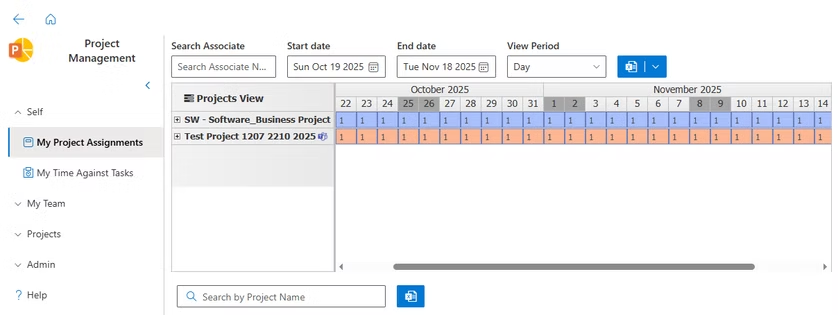
My Projects Assignment
Show users their project assignments, to which projects they are assigned.
Filters to filter out the date range and the view
Export your data to excel
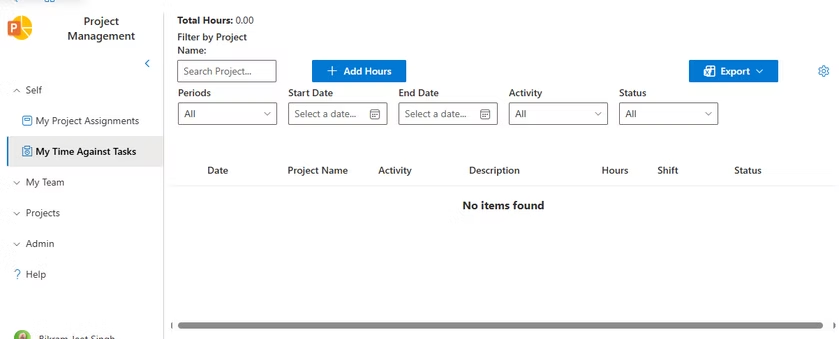
My Time Against Tasks
Show all the hours added against the projects
Can add, edit and delete hours from here
Filters to filter out the date range and the view
Export your data to excel
2. My Team
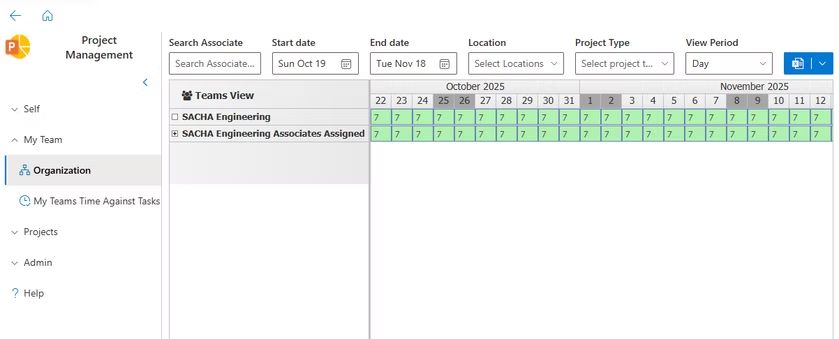
Organization View
Shows the hierarchical view based on the cost centers that users have entered.
The view is only accessible by the cost center owner
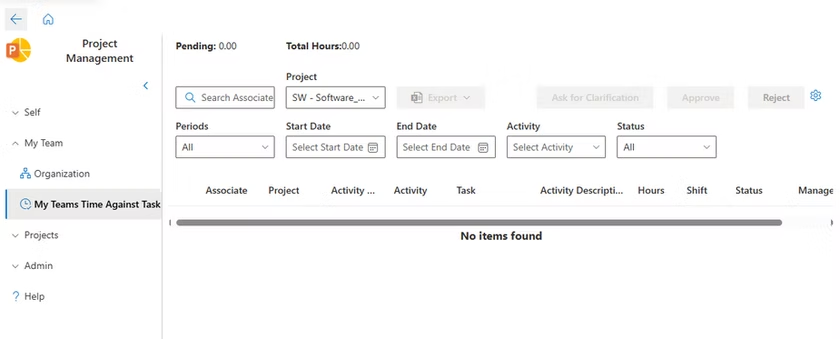
My Teams Time Against Task
Shows all the hour entries for the projects to the Project Manager (PM).
PM can select any item and Approve/Reject/Clarify.
3. Projects
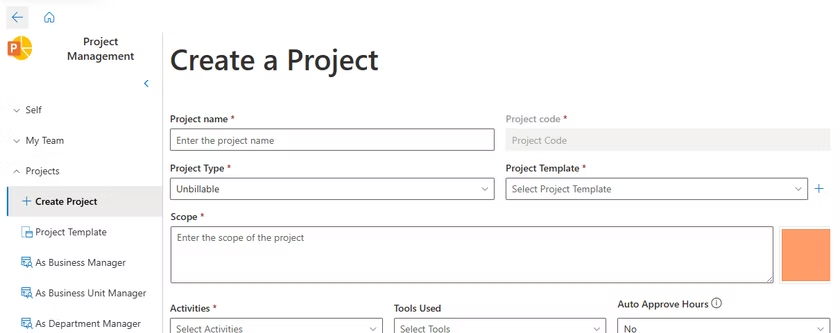
Create Project
Accessible by Admin, DM & DH.
Once a project is created, the app will automatically add PM/DM/DH to respective groups.
The user can add the details and create project.
Project will be created based on project template.
Project Template
Accessible by Admin, DM & DH.
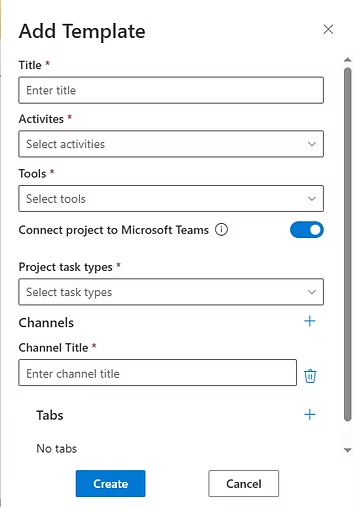
Project Templates dictates what type of project is to be created.
User can add all the details, select if want to create a project with Microsoft teams or a simple project..
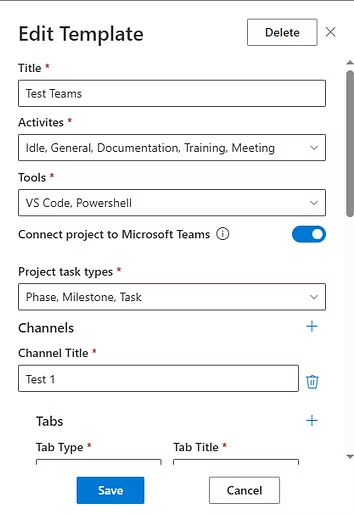
In the Teams connected project, User can then define the team by adding channels, tabs, planners and one notes.
Project Templates can edited or deleted from the same view
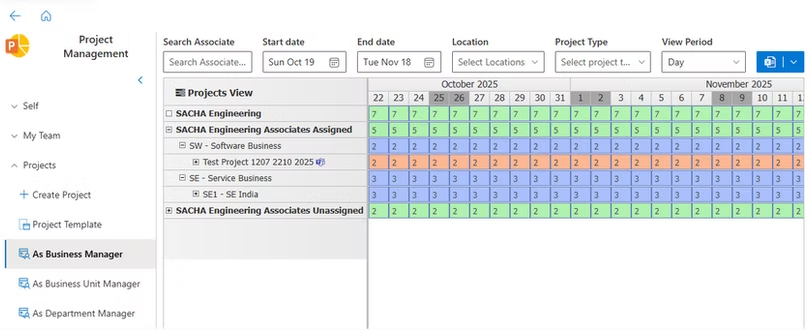
As Business Manager, As Business Unit Manager, As Department Manager
Shows the hierarchical view of projects based on the cost center role and project department.
Accessible by the respective role ( for now the admin can go to
“https://tenant.sharepoint.com/sites/{sitename}/_layouts/15/groups.aspx “ and add the member to the respective group.
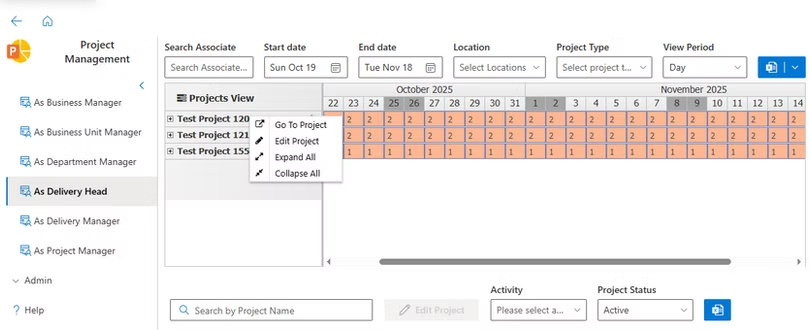
As Delivery Head, As Delivery Manager
Shows the projects where the user is DM/DH.
Addition of User to DM/DH group is automatic.
DM/DH can Edit Project and can check the resources.
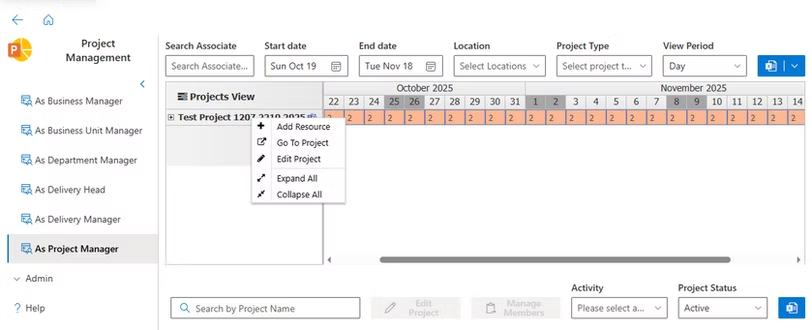
As Project Manager
Shows the projects where the user is PM.
Addition of User to PM group is automatic.
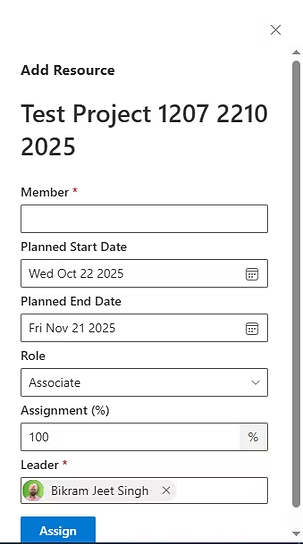
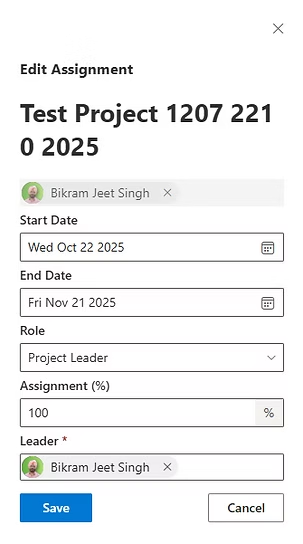
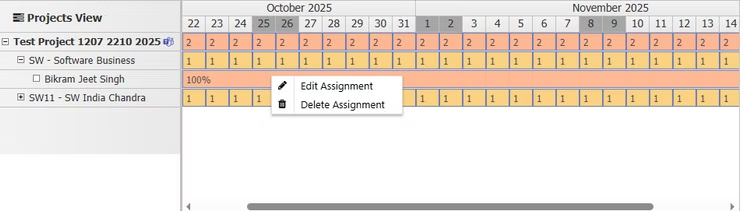
PM can Edit Project and can add/edit the resources.
4. Admin
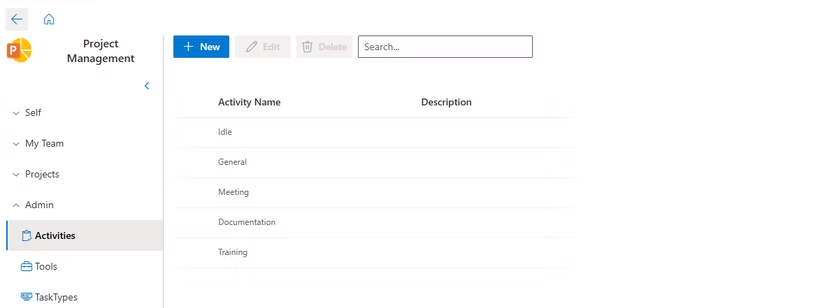
Activities
Can add/edit/delete activities for the app
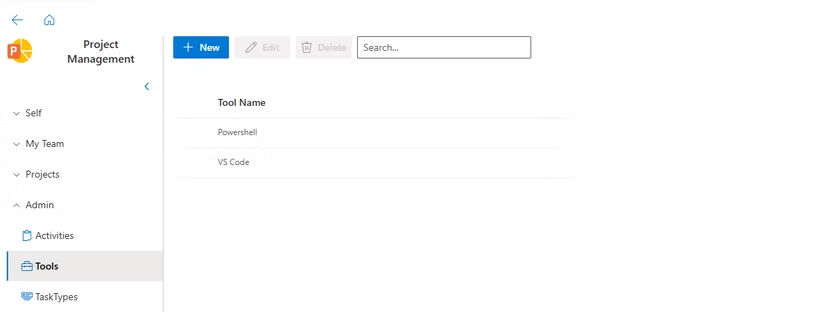
Tools
Can add/edit/delete tools for the app
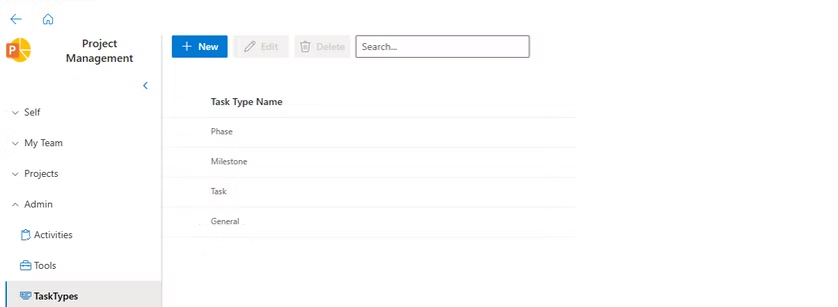
Task Types
Can add/edit/delete task types for the app
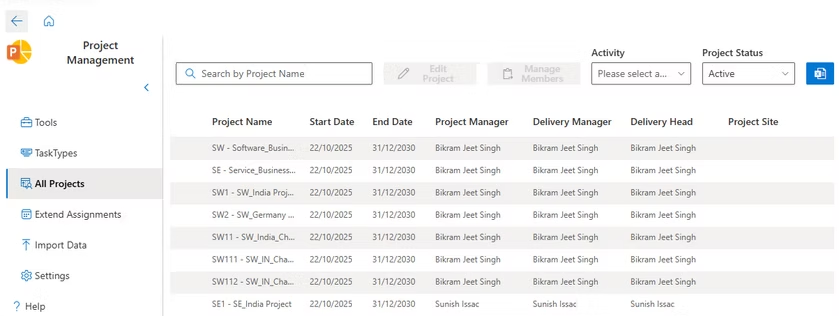
All Projects
shows all the projects so that admin can also manage resources and edit project.
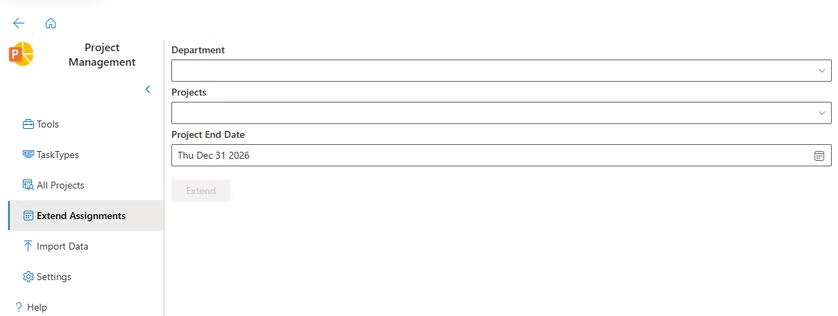
Extend Assignments
Admin can extend the assignments of selected projects in bulk
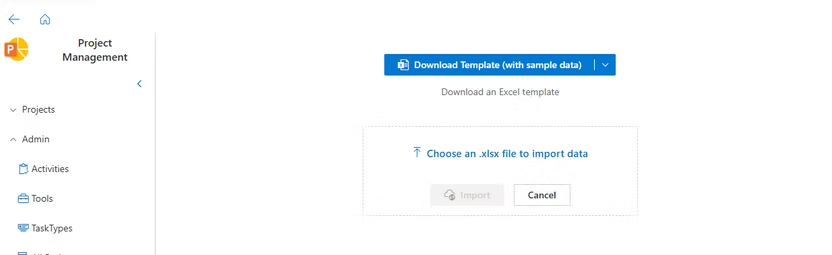
Import Data
by this view, admin can import mandatory data.
You can now download a template with or without sample data, and import all required data from the above UI. Once all data is imported, you can use the app. These are the sheets to be imported:
1. Cost Centers, it basically decides the hierarchy of the organization. You can make:
•4 levels: Business > Business Unit > Department > Teams
•3 levels: any three
•2 levels: any two
•1 level: any
To declare a business, the Title should match the Business column, and to add Business Unit or department, the respective columns should be equal to the title. And the same procedure is followed for the whole hierarchy.
2. Cost Center hourly rate: Here all the information for costing is added.For example, Leader from MBD Cost center is assigned some cost per hour.
3. Role: All the roles for assignment (default: Project leader, associate, Idle, General, Meeting)
4. Task Types: All the task types (default: Phase, Milestone and Task)
5. Shifts
6.Tools
7.Purchase Orders
8.Employees
Navigation to the project
- Each resource assignment view contains projects and its assignment.
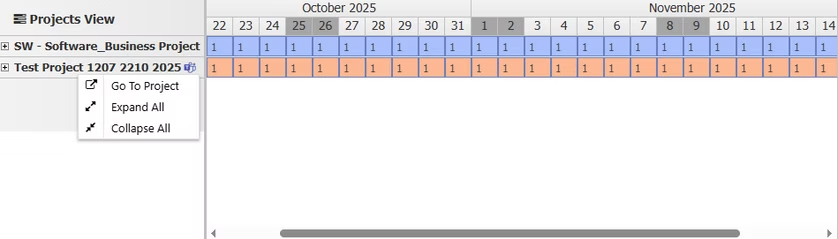
- If any project has a “Microsoft Teams” symbol, it means it is a project connected to a team.
- The user can click on the Teams Icon.
- Or right click on it and click on “Go To project”.
- Or from projects table, the user can go to project by clicking on the link icon.
This opens the project (Task Management Section)
Task Management (Manage individual project)
The Task Management section can be used in two ways:
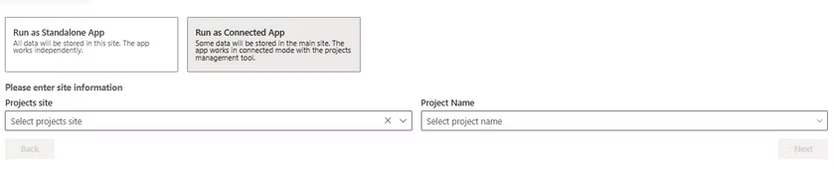
1. Run as Standalone App In this setting, it will work as task management app for a separate/individual/personal project.
2. Run as Connected App In this setting, the user can give the sitename and project with which they want to connect.
When navigating from Projects Assignment, we don’t need to follow above steps. Only required when setting up a different site manually.
Task Management provides several functionalities:
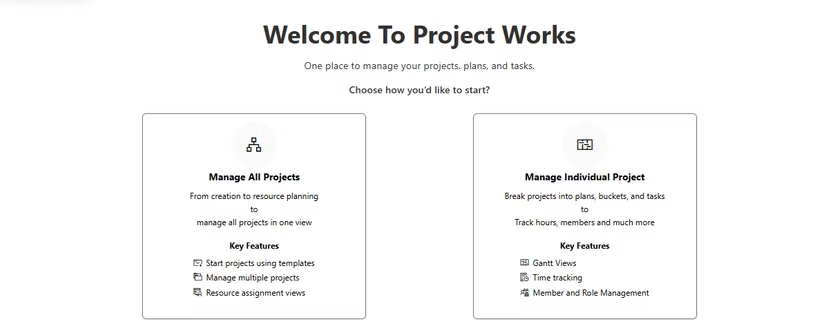
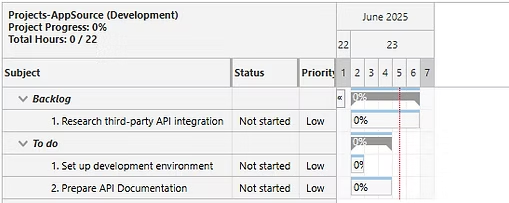
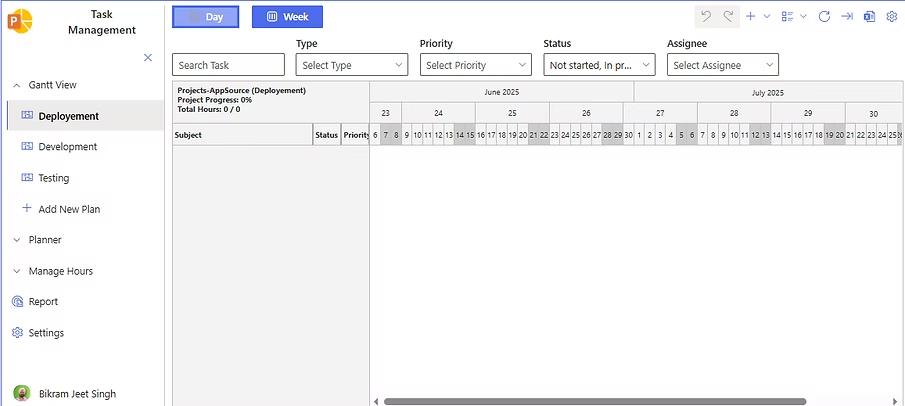
1. Gantt Charts

Add buckets and tasks, set durations, priorities, and assign members.
Drag, resize, and reorder tasks directly on the chart.
Use filters for task status, priority, type, and assignee.
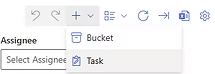
Toolbar options: Undo/Redo, Add Task/Bucket, Import/Export tasks, Sync, Appearance settings.
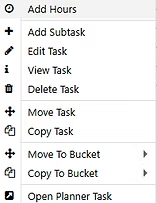
Context menu: Add hours, add/edit/delete/move/copy tasks, open in Planner, expand/collapse tasks1.
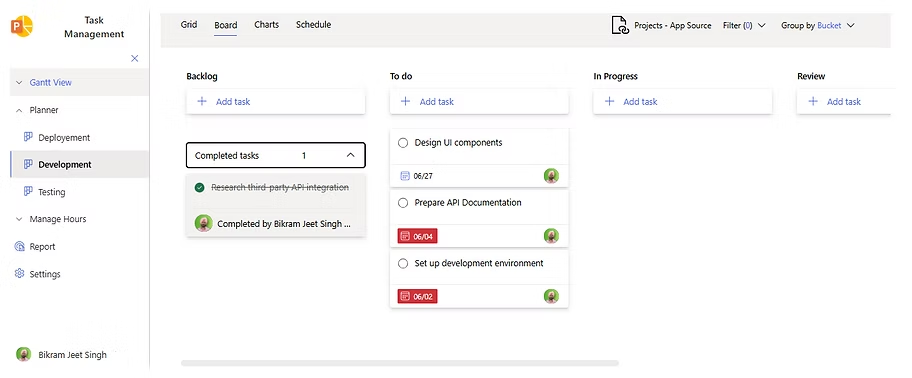
2. Planners
Access and manage Planner boards as you would in Microsoft Planner.
3. Manage Hours
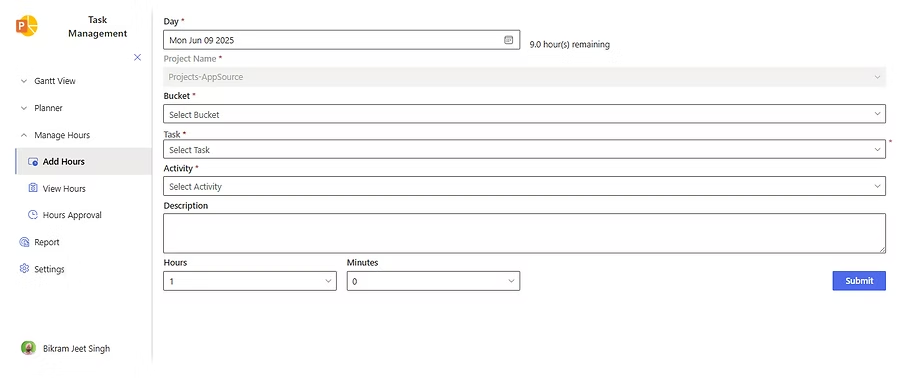
1. Add Hours
Users can add hours either via the Gantt Chart or the Add Hours page; both offer identical functionality.
The date defaults to the current date but can be changed.
The project name is pre-selected by default.
Users select a bucket to filter tasks assigned to them, and the tasks field updates accordingly.
Upon submitting, the hours are recorded against the selected task.
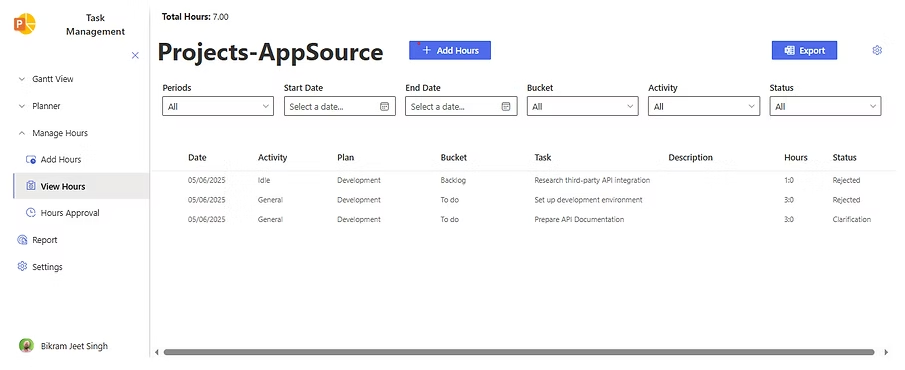
2. View Hours
This screen displays all hours entered by the user.
Users can export the displayed data to an XLSX file.
Hours can also be added from this page.
Filters are provided to help users refine the displayed data.
Selecting an hour entry opens a panel where users can edit or delete the entry.
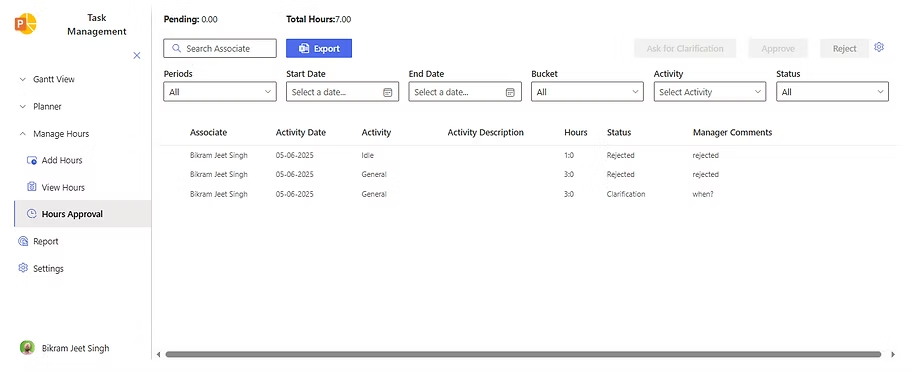
3. Hours Approval
This screen is restricted to owners or managers for reviewing hours submitted by users.
Owners can approve, reject, or request clarification on hour entries.
When taking action, a pop-up allows the reviewer to add comments for additional context.
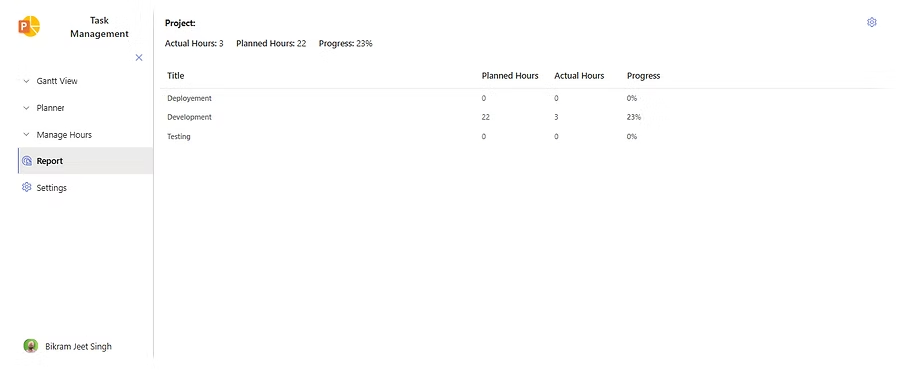
4. Report
Report provides a comprehensive view of the project’s overall progress by summarizing total planned hours, actual hours, and the calculated progress percentage.
It also presents a detailed table listing all individual plans along with their respective planned hours, actual hours, and progress.
Additionally, owners have the ability to customize which plans are included in the project-wide totals by clicking on the gear icon.
This action opens a report settings panel where specific plans can be selected or deselected, giving owners full control over how project metrics are aggregated and displayed.
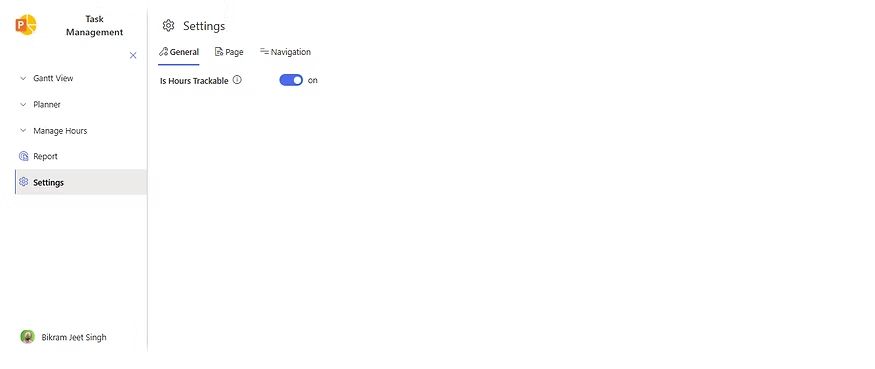
4. Settings
This module is accessible only by the Owner.It includes three main sections:
General
Is Hours Trackable:
Controls whether time tracking is enabled.
Default: Enabled (True).
Can be disabled by the Owner if tracking is not required.
Page
Adjusts SharePoint page appearance to maximize working space for the tool.
Useful for hiding unnecessary page elements.
Navigation
Manages SPA (Single Page Application) navigation settings.
Planners Visible To: Determines whether the Planner module is visible to members or restricted to certain roles.
Navigation
Manages SPA (Single Page Application) navigation settings.
Planners Visible To: Determines whether the Planner module is visible to members or restricted to certain roles.
Ready to Transform Your Business? Take the First Step Today!
Call Us
+62 (385) 5025004
Email Us
contact@domain.com
Quick Link
- Home
- About Us
- Features
- Solution
- Pricing
Services
- Commerce
- Payments
- Point of sale
- Stock Management
- Customer Directory
Resource
- Blog
- Support
- Help Center
- Tutorials
Social
Legal
- Term
- Privacy
- Cookies